Figma integrates prototyping and developer handoff, making it easy to create sleek designs. But the moment you try to move a mockup to WordPress, the panic button often gets pressed. Because it is not simply an “export and import” process.
To move a Figma mockup into a functional WordPress site usually requires plugins, page builders, or custom coding, along with software tools and development skills. Or get the WordPress development service providers to avoid this hectic task.
In this guide, we will share the top industry-proven and simplest methods you can use to shift a Figma design to WordPress.
How to Convert a Figma Design into a Functional Website: 6 Different Methods
The movement of a Figma design to WordPress often brings up challenges like mismatched layouts, missing interactions, font and style issues, plugin limitations, and many other hurdles.
Luckily, there are six proven methods to bring your designs into full functionality without the headache.
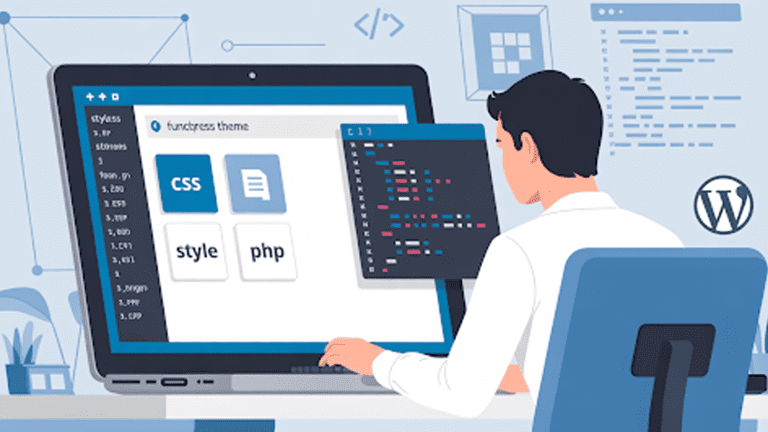
Manual Coding (HTML/CSS → WordPress Theme)
Manual coding gives full control over every pixel when moving a Figma design to WordPress, but it can feel intimidating at first.
Follow these steps to implement this method:
- Export design assets from Figma: Export images, icons, and other graphical elements needed for your site.
- Convert the design into HTML and CSS: Build each section using HTML elements like <div>s and style them using CSS Grid or Flexbox for layouts.
- Integrate HTML/CSS into a WordPress theme: Place your HTML files into a WordPress theme structure, using PHP templates to define headers, footers, and sections.
- Add dynamic content
Replace static elements with WordPress functions. For example:
<?php the_post_thumbnail(); ?>
<?php the_title(); ?>
This allows posts, images, and other content to update dynamically.
- Test responsiveness and functionality: Check layouts on different screen sizes, and ensure all dynamic elements display correctly.
- Refine and optimize: Break complex sections into reusable template parts, and optimize CSS and code for performance.
Even with careful planning, some designs can create unexpected layout mismatches or responsiveness issues. Fonts, spacing, and interactive elements often require extra attention to maintain the look and feel of the original Figma design.
For teams aiming to skip these headaches, Pure Website Design offers expert WordPress development services that handle these details flawlessly. This approach ensures a fully functional, high-quality website while letting you focus on design and content.
Using Page Builders (Elementor, WPBakery, Divi, etc.)
Directly converting a Figma design into WordPress often feels impossible without coding.
Specialized plugins provide a bridge, exporting layouts, components, and styles from Figma into WordPress-ready formats automatically.
Follow these steps to implement this method
- Select the right page builder: Pick Elementor, Divi, or WPBakery based on your design complexity and workflow needs.
- Install and activate the plugin: Set it up in the WordPress dashboard and explore its modules for sections, columns, and widgets.
- Recreate Figma layouts visually: Map each section from Figma into the page builder, adjusting spacing, typography, and colors for accuracy.
- Integrate dynamic content: Use modules or shortcodes to display posts, galleries, or custom content dynamically.
- Test responsiveness carefully: Review layouts on desktop, tablet, and mobile to ensure the design remains intact across devices.
Even with page builders, highly customized interactions or unique visual elements may need extra CSS or minor coding. Maintaining consistent spacing, alignment, and responsive behavior is crucial to keeping the Figma design’s integrity intact.
This method combines speed with precision, giving designers a practical balance between visual control and development efficiency.

Figma to WordPress Plugins/Add-ons
A Figma mockup can contain dozens of layers, grids, and interactive components. Translating all of this manually into WordPress consumes hours, even for experienced developers.
Plugins and add-ons like Figma2WP or Anima can generate WordPress-ready templates directly from your Figma files, preserving layouts, typography, and spacing while drastically reducing manual work.
Follow these steps to implement this method
- Choose the right plugin: Pick a plugin that supports your design complexity. Figma2WP handles component-based exports, while Anima preserves responsive layouts and interactions.
- Authorize access to Figma files: Connect the plugin to your Figma account and select the frames or pages to export. Only choose finalized designs to prevent unnecessary revisions later.
- Export Figma layers to WordPress templates: Convert frames into HTML, CSS, and ready-to-use WordPress components. For example, a card section with images and text can be exported as:
<div class=”card”>
<img src=”image.jpg” alt=”Portfolio Item”>
<h3>Project Title</h3>
<p>Description goes here</p>
</div>
The plugin will also generate WordPress PHP code to pull dynamic content:
<?php if(have_posts()): while(have_posts()): the_post(); ?>
<div class=”card”>
<?php the_post_thumbnail(); ?>
<h3><?php the_title(); ?></h3>
<p><?php the_excerpt(); ?></p>
</div>
<?php endwhile; endif; ?>
- Import and integrate into WordPress: Upload the generated templates or connect them through the plugin workflow. Verify that sections, typography, and spacing match the Figma mockup.
- Test responsiveness and functionality: Check layouts on desktop, tablet, and mobile devices. Adjust CSS classes if needed, especially for custom interactions or hover effects.
Even with automated plugins, some components may require minor tweaks. Attention to grids, spacing, and responsive behavior ensures the WordPress site mirrors the original Figma design exactly.
Using this method saves substantial time while maintaining accuracy, making it ideal for designers and developers who need efficiency without compromising fidelity.
Converting Figma to HTML First, Then Integrating with WordPress
A Figma design can be highly detailed, but WordPress cannot read it directly. Converting it to HTML first provides a clean, structured foundation before integration, giving full control over layouts and functionality.
Follow these steps to implement this method
- Export Figma asset: Save images, icons, and any other design elements required for the site.
- Build the HTML structure: Recreate sections using semantic HTML. For example, a services section might look like:
<section class=”services”>
<div class=”service-item”>
<img src=”icon1.png” alt=”Service Icon”>
<h3>Service Title</h3>
<p>Description of the service.</p>
</div>
</section>
- Style with CSS: Apply CSS for layout, typography, and responsiveness. Flexbox or CSS Grid works well for precise alignment.
.services {
display: grid;
grid-template-columns: repeat(3, 1fr);
gap: 20px;
}
.service-item h3 {
font-size: 18px;
margin-top: 10px;
}
- Integrate HTML into WordPress: Convert HTML sections into WordPress templates using PHP. Dynamic content like posts or custom fields can be added:
<?php if(have_posts()): while(have_posts()): the_post(); ?>
<div class=”service-item”>
<?php the_post_thumbnail(); ?>
<h3><?php the_title(); ?></h3>
<p><?php the_excerpt(); ?></p>
</div>
<?php endwhile; endif; ?>
- Test and refine: Verify layouts on multiple devices and browsers, adjusting CSS and template parts as needed.
Converting to HTML first ensures precise control over spacing, grids, and responsive behavior before WordPress integration.
This approach works best for developers who want clean, maintainable code and a fully customized site that mirrors the Figma design exactly. Minor tweaks may still be required for animations or interactive components, but the structure will be solid and easy to manage.
Using Headless WordPress with Figma Designs
Modern web applications demand speed, flexibility, and seamless integration.
Headless WordPress allows designers to treat WordPress purely as a content backend while building the frontend with frameworks like React, Vue, or Next.js, making it perfect for complex Figma designs that need interactive or highly dynamic interfaces.
Follow these steps to implement this method
- Prepare WordPress as a headless CMS: Set up WordPress to serve content through the REST API or GraphQL. Ensure all pages, posts, and custom post types are accessible via API endpoints.
- Export Figma assets and structure: Break your design into reusable components and export images, icons, and typography specifications.
- Build the frontend with a JavaScript framework: Recreate the Figma design using React, Vue, or Next.js. Fetch dynamic content from WordPress API endpoints:
import React, { useEffect, useState } from ‘react’;
function Posts() {
const [posts, setPosts] = useState([]);
useEffect(() => {
fetch(‘https://yourdomain.com/wp-json/wp/v2/posts’)
.then(response => response.json())
.then(data => setPosts(data));
}, []);
return (
<div className=”posts”>
{posts.map(post => (
<div key={post.id} className=”post-card”>
<h2>{post.title.rendered}</h2>
<div dangerouslySetInnerHTML={{ __html: post.excerpt.rendered }} />
</div>
))}
</div>
);
}
export default Posts;
- Integrate interactivity and styling: Apply CSS or CSS-in-JS to match Figma layouts, spacing, and responsive behavior. Add animations, hover effects, and interactive elements as needed.
- Test performance and responsiveness: Check rendering speed, device adaptability, and dynamic content updates. Ensure API endpoints return data correctly and frontend components display consistently.
Headless WordPress allows full separation of content and presentation, giving developers freedom to implement complex Figma designs without limitations of traditional themes.
Careful attention to component structure, API data handling, and responsive layouts ensures a polished, high-performance website that mirrors the original design exactly.
Hiring a Figma to WordPress Conversion Service
Some Figma designs are highly intricate, and turning them into a fully functional WordPress site can take hours or even days for a single developer.
Hiring an expert service ensures accuracy, speed, and a polished end result without the trial-and-error headaches.
Follow these steps when using a professional service
- Evaluate the service provider: Look for experience with Figma-to-WordPress conversions, portfolio quality, and technical expertise.
- Share your Figma files and requirements: Provide all design assets, components, and notes on interactions or animations. Clear communication prevents misunderstandings.
- Review prototypes and drafts: Ask the team to deliver previews or staging sites so you can confirm layouts, responsiveness, and dynamic content before final deployment.
- Test the final website: Check cross-device compatibility, loading speed, and interactive elements. Ensure WordPress functions like menus, posts, and custom components work seamlessly.
Choosing Pure Website Design guarantees top-tier WordPress development expertise. Our team converts Figma designs into pixel-perfect WordPress sites, handling responsive layouts, dynamic content, and all technical nuances.
For ongoing support, our WordPress maintenance services keep your site secure, up-to-date, and running smoothly. From plugin updates to performance optimizations, we ensure your website remains as functional and polished as the day it launched.
Hiring a professional service saves time, avoids common pitfalls, and ensures your Figma design becomes a fully functional, high-quality WordPress site with long-term reliability.
Popular WordPress Builders for Figma Conversions
When moving a Figma design to WordPress, choosing the right builder can make a big difference in speed, flexibility, and control.
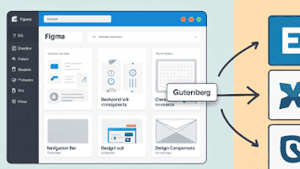
- Elementor is a drag-and-drop page builder that lets you create custom layouts and designs without coding. It gives full control over styling, responsiveness, and animations.
- Gutenberg is WordPress’s native block editor. It uses a modular, block-based system for pages and posts, making it easy to add text, images, galleries, and other content elements.
- Bricks is a modern all-in-one theme and site builder. It allows developers and designers to build lightweight, fully custom, and responsive websites visually while maintaining fast performance.
Using these tools with the right method ensures your Figma designs translate perfectly into WordPress, saving time and keeping layouts pixel-perfect.
Which Figma to WordPress Method Suits You Best
Every project has unique requirements, and not every method fits every designer or developer. Choosing the right approach depends on your technical skills, timeline, design complexity, and desired level of control.
| Method | Best For | Technical Skill Needed | Speed | Customization Level |
| Manual Coding | Developers aiming for pixel-perfect control | High | Slow | Very High |
| Page Builders (Elementor, Divi, WPBakery) | Designers wanting speed with visual control | Medium | Fast | Medium |
| Figma to WordPress Plugins/Add-ons | Standard layouts, automated workflow | Low to Medium | Fast | Medium |
| HTML First, Then Integrate with WordPress | Developers who want clean structure and maintainability | High | Medium | Very High |
| Headless WordPress | Complex, dynamic web applications | High | Medium | Very High |
| Hiring a Professional Service | Teams or individuals seeking hassle-free, expert results | Low | Fast | Very High |
For projects where precision, speed, and reliability matter most, Pure Website Design offers expert Figma-to-WordPress conversions tailored to your needs.
Our team handles everything from responsive layouts and dynamic content to long-term WordPress maintenance, ensuring your website runs smoothly and looks perfect on every device.
Figma to WordPress Plugins and Add-ons for Rapid Conversion
Figma designs often contain complex layouts and components. Plugins and add-ons help turn these designs into WordPress-ready templates quickly while preserving structure and styling.
- Figma2WP: Exports Figma components into HTML/CSS and WordPress templates for fast conversion.
- Anima: Converts Figma designs into responsive layouts with interactive elements.
- TeleportHQ: Generates clean HTML/CSS or React code that can be integrated into WordPress.
- WP Figma: Bridges Figma components directly into WordPress block editor.
- Builder.io Figma to HTML: Turns Figma frames into responsive HTML/CSS suitable for WordPress.
- Framer: Exports Figma designs into React components compatible with WordPress headless setups.
- Figma Export Kit: Automates the conversion of Figma designs into WordPress-ready templates and assets.
If you think converting a Figma mockup to WordPress is simple, think again. Our team has extensive experience handling complex projects, and many clients come to us frustrated after trying it themselves.
Even in online communities like Reddit, one user confirms that this process is rarely straightforward. Successful conversion requires the right expertise, careful planning, proper research, and the right tools and applications to ensure the design works perfectly on WordPress.
FAQs
How Pure Website Design help you?
Pure Website Design helps turn your Figma mockups into fully functional WordPress websites. We handle everything from responsive layouts and dynamic content to custom interactions, saving time and ensuring a pixel-perfect conversion.
Can I publish a website directly from Figma?
No, Figma cannot directly publish websites. It is a design and prototyping tool, so you need to convert designs into code or use WordPress integration tools before going live. Proper conversion ensures your design looks and functions exactly as intended.
Can ChatGPT convert Figma design to HTML?
No, ChatGPT cannot directly convert Figma designs into HTML. ChatGPT can guide you, provide coding examples, and explain workflows, but actual conversion requires plugins, page builders, or manual coding by developers.
Can I get HTML code from Figma?
Yes, Figma allows you to inspect elements and extract CSS, but full HTML code for a functional website needs additional tools or manual coding. Plugins like Figma2WP or Anima help streamline this process for WordPress integration.
Can Figma host a website?
No, Figma cannot host websites. It is strictly a design and prototyping platform. To publish your website, you need a web host and a platform like WordPress, where the converted Figma design can function online.
Does Figma have CMS?
No, Figma does not include a content management system. It is meant for design, prototyping, and collaboration. WordPress or other CMS platforms are required to manage content, publish pages, and handle dynamic data.
Which one is better, Figma or WordPress?
Figma and WordPress serve different purposes, so one is not inherently better than the other. Figma excels at design, prototyping, and collaboration, while WordPress is ideal for building and managing live websites. Together, they create a smooth design-to-development workflow.
Why I hire Pure Website Design
Hiring Pure Website Design ensures a stress-free conversion of your Figma designs into fully functional WordPress websites. Our team handles technical complexities, preserves design fidelity, and provides long-term support, making the entire process faster, more accurate, and reliable.
Conclusion
A Figma design does not become a WordPress website on its own. Projects often present challenges such as complex layouts, dynamic content, responsiveness, and interactive elements. Selecting the right approach from manual coding, page builders, plugins, or professional services, you can ensure efficiency, accuracy, and design fidelity.
Expert guidance, the right tools, and careful workflow turn your Figma mockup into a high-performing WordPress site that reflects your vision exactly.
Pure Website Design delivers pixel-perfect conversions and provides ongoing maintenance to keep your website secure, fast, and fully functional