Migrating a site to WooCommerce can feel like walking on a tightrope. One wrong step and the rankings you worked months to achieve can vanish overnight.
The truth is most traffic loss after migration does not happen because WooCommerce is weak. It happens because URLs change, redirects break, and SEO settings are ignored.
The good news is that traffic loss is not inevitable. All you need is the right WooCommerce developers like Pure Website Design. In this blog we will share the exact approach expert developers use to migrate your site to WooCommerce while protecting your rankings and even boosting performance.
How to Migrate to WooCommerce Without Losing SEO
Migrating a website is not just about moving products and design. It is about protecting the SEO foundation you have already built and making sure performance improves rather than declines.
Step 1: Audit Your Existing Website
Before moving to WooCommerce, you must check your whole website. This is called an audit. It helps you know what is working and what is not.
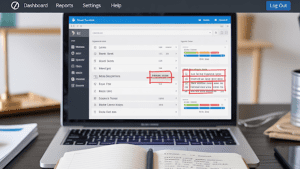
- Check all your pages. Look at the titles, meta descriptions, and keywords. Make sure they are written and correct.
- Check the links inside your website. They should open the right pages. Note any broken links.
- Look at your images. Make sure they are clear, named well, and not too large.
- Check your website speed. A slow website hurts your SEO.
- Look at your current traffic in Google Analytics. Find which pages bring the most visits. These are the pages you must protect.
- Check your sitemap and robots.txt file. They tell Google how to crawl your website.
Write down all the problems you find. Keep a record of the things you want to fix.
When you finish this audit, you will know your website’s full health. This makes the next steps safe and clear.
Step 2: Map and Preserve URL Structures
URLs are the address of your pages. When you move to WooCommerce, these addresses can change. If they change, people and search engines may not find your pages. This can make you lose traffic and rankings.
To stop this, you must map all old URLs. Make a list of every page, product, and category. Then match them with the new WooCommerce URLs.
- Check that each old URL has a new place to go. If a page has no match, decide if you will keep it or remove it.
- Set 301 redirects for all old URLs. A 301 redirect tells search engines that the page has moved. This passes your SEO power to the new page.
- Check for duplicate URLs. WooCommerce can create more than one link for the same page. Fix this with canonical tags.
- Update your sitemap with the new URLs. Share it with search engines so they can crawl your site fast.
- Test every redirect. Make sure no page shows a 404 error. A 404 means the page is lost.
When you map and preserve your URLs, you protect your SEO work. Your visitors and search engines can move smoothly to the new site.
Step 3: Set Up 301 Redirects Correctly
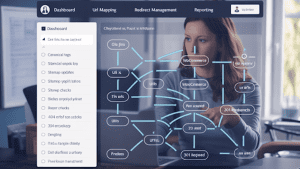
A 301 redirect tells search engines and users that a page has moved. It sends them from the old URL to the new URL. This keeps your traffic safe and passes your SEO power.
If you do not set redirects, old links will break. Visitors will see a 404 error. Search engines will drop these pages. This can hurt your rankings and sales.
- Make a full list of old URLs and match them to the new ones. Set 301 redirects for each. Do not use 302 redirects. A 302 is only for temporary moves and will not pass full SEO power.
- Check that your redirects do not loop. A loop happens when one redirect points to another redirect. This slows down your site and confuses search engines.
- Do not send all old URLs to the home page. Each old URL should go to its best new match.
- Update your .htaccess file or use a plugin to manage redirects. Keep the setup clean and easy to track.
- After setting redirects, test them. Use tools to check for errors. Make sure every old URL goes to the right new page.
When 301 redirects are set up correctly, your visitors will not get lost. Your SEO power will move with you to WooCommerce.
Step 4: Transfer On-Page SEO Elements
On-page SEO elements help search engines understand your site. They also help users decide to click on your pages. If you forget to move them, your site can lose rankings fast.
- First, move all page titles. Each title should match the content and keywords.
- Next, move all meta descriptions. They should stay short and clear.
- Move the headings from each page. Keep the H1, H2, and other headings in the right order.
- Transfer all alt text from images. Alt text tells search engines what the image shows.
- Check that your content is the same. Do not lose product details, reviews, or blog posts.
- Make sure your internal links are still there. These links connect your pages and help with crawling.
- Look at your structured data. Move schema markup for products, ratings, and other rich results.
- Check your canonical tags. Make sure each page points to the right version.
- After the transfer, review every page. Make sure titles, meta, text, and links are correct.
When you move all on-page SEO elements, you protect your keywords and rankings. This keeps your traffic and sales safe after migration.
Step 5: Rebuild Internal Linking
Internal links are the paths inside your website. They guide users and search engines from one page to another. If these links break during migration, many problems can follow.
- Check every page for missing links. A page with no links can get lost in the crawl.
- Make sure links point to the new URLs. Do not leave links pointing to old pages. That will cause 404 errors and lost traffic.
- Keep a strong link structure. Important pages should have more links. Less important pages should have fewer.
- Balance the number of links on each page. Too many links confuse search engines. Too few links hide important pages.
- Use anchor text that makes sense. The text in a link should tell what the page is about.
- Check for broken links after migration. Fix them at once.
- Update navigation menus, footers, and category pages. They must all link to the right places.
When your internal linking is rebuilt well, your site becomes easy to crawl. Search engines can find, index, and rank your pages faster. Users can move smoothly across your site.
Step 6: Optimize WooCommerce for Speed and Performance
Speed is a ranking factor and a user need. A slow WooCommerce site can lose both visitors and sales. Performance must be checked and improved before and after migration.
- Start with hosting. Choose a server that is fast, secure, and made for WooCommerce. Weak hosting slows your site and limits growth.
- Use a lightweight theme. Avoid themes filled with heavy code. Clean themes load faster and improve user experience.
- Limit plugins. Too many plugins add extra requests and slow the system. Keep only the plugins that are needed.
- Enable caching. Use object caching and browser caching to reduce load times.
- Compress and optimize images. Large images increase page size and slow down product pages.
- Use a Content Delivery Network. A CDN serves files from the nearest server and reduces delay.
- Check your database. Remove unused data, old orders, and spam. A clean database speeds up queries.
- Enable lazy loading. This loads images only when the user scrolls to them.
- Minify CSS, HTML, and JavaScript. Smaller files load faster and reduce server stress.
- Test Core Web Vitals. Focus on Largest Contentful Paint, First Input Delay, and Cumulative Layout Shift. Fix issues at once.
Follow UX best practices. Keep navigation simple. Make the cart and checkout process fast. Use clear product pages with strong calls to action. Mobile design must be smooth and responsive.
When WooCommerce is optimized for speed and performance, search engines crawl faster. Users enjoy a smooth shopping experience. This protects your rankings and increases sales.
Step 7: Generate and Submit Updated XML Sitemaps
An XML sitemap is a file that lists all important URLs of your website. It helps search engines crawl and index your pages in the right way. After moving to WooCommerce, you must update and submit a new sitemap.
- First, generate a fresh XML sitemap. Use an SEO plugin like Yoast or Rank Math. Make sure it includes product pages, category pages, and main content pages. Do not include tag pages or duplicate URLs.
- Check the sitemap structure. Each URL must use HTTPS. Each page must return a 200 status code. Remove any 404 or redirecting URLs.
- Split large sitemaps if needed. If your store has thousands of products, create multiple sitemap files and connect them with an index sitemap.
- Use canonical tags along with the sitemap. This avoids duplicate content problems in WooCommerce.
- Submit your sitemap in Google Search Console. Also submit it in Bing Webmaster Tools. This helps search engines crawl faster and update your index.
- Update the robots.txt file. Add the line Sitemap: https://yourdomain.com/sitemap_index.xml to guide crawlers directly.
- Test your sitemap with Google’s inspection tool. Fix errors like blocked pages, noindex tags, or broken links.
As a best practice for WooCommerce UX, keep product URLs clean and simple before submitting. Long, messy URLs confuse both users and crawlers.
When your XML sitemap is clean and updated, search engines can find your new WooCommerce site quickly. This protects your rankings and keeps your traffic stable.
Step 8: Test Tracking, Analytics, and Conversions
Tracking is the backbone of your online store. Without it, you cannot measure traffic, sales, or user behavior. After migration to WooCommerce, you must test and confirm that all tracking works.
- First, connect Google Analytics or GA4. Add the tracking code in your site header or use a plugin. Verify that all pageviews and events are recorded.
- Set up Google Tag Manager for advanced tracking. This allows you to manage tags without editing code. Check triggers and variables for accuracy.
- Enable enhanced eCommerce tracking. Make sure product views, add-to-cart, checkout, and purchases are all tracked. Test each step to confirm data flow.
- Check Google Search Console and Bing Webmaster Tools. Verify ownership and confirm that data is flowing for impressions, clicks, and indexing.
- Set up conversion goals. Track key actions like completed orders, newsletter sign-ups, or form fills. Match each goal with the right URL or event.
- Test cross-device tracking. Make sure conversions are tracked correctly on mobile, tablet, and desktop.
- Integrate Facebook Pixel, TikTok Pixel, or LinkedIn Insight Tag if you run ads. Confirm that custom events like purchases are firing.
- Check attribution settings. Confirm that sales are credited to the right source. Wrong attribution can mislead your strategy.
When tracking, analytics, and conversions are fully tested, you get clean data. This data shows what works and what fails. With it, you can grow your WooCommerce store without blind spots.
Step 9: Monitor Rankings and Fix Issues After Migration
Migration does not end when the site goes live. The real work starts after launch. You must watch your rankings and fix issues quickly.
- Track your target keywords daily. Use tools like Ahrefs, SEMrush, or Google Search Console. Compare new positions with old ones.
- Check for sudden ranking drops. If a page loses position, confirm if the URL is live, redirected, or blocked by robots.txt.
- Run a crawl with Screaming Frog or Sitebulb. Look for broken links, missing meta tags, or crawl errors. Fix them before search engines downgrade your site.
- Inspect server logs. Verify that Googlebot can crawl your WooCommerce site without errors. Watch for 404 or 500 status codes.
- Check Core Web Vitals in Google Search Console. Optimize LCP, FID, and CLS for better user experience and ranking signals.
- Verify your schema markup. Use Google’s Rich Results Test. Make sure product schema, price, reviews, and availability are all valid.
- Audit your mobile performance. Mobile-first indexing means slow or broken mobile pages will hurt your SEO.
- Fix thin or duplicate content. WooCommerce often generates archive pages that compete with product pages. Use canonical tags or noindex where needed.
- Test redirects again. Even small redirect chains can waste crawl budget and hurt ranking. Keep them clean and direct.
- Track conversions alongside rankings. Sometimes traffic may dip, but conversions stay strong. Always measure both before reacting.
Keep monitoring for 30 to 90 days after migration. Search engines need time to process changes. Continuous fixes protect your authority and trust signals.
Quick Note: As the leading WooCommerce development agency, Pure Website Design can migrate your store to WooCommerce without risking your rankings, traffic, or sales.
Many businesses face drops in visibility and performance after migration. With us, you do not just get developers, you get a team that ensures your store is stable, optimized, and search-engine ready from day one.
Reasons Why Store Ranking Drops When Migrating to WooCommerce
Many stores see a sudden fall in rankings after moving to WooCommerce. The problem is not WooCommerce itself, but the way migration is managed. Below are the main reasons why this happens.
| Reason | What Goes Wrong | Impact on Store |
| Broken URL Structure | Old links are not mapped to new ones | Loss of traffic and SEO value |
| Missing 301 Redirects | Redirects not set or done poorly | Search engines see pages as missing |
| Ignored On-Page SEO | Titles, meta, and schema not carried over | Drop in keyword visibility |
| Weak Internal Linking | Links inside content not rebuilt | Crawl depth and user flow suffer |
| Poor Speed Optimization | Heavy themes, plugins, or hosting issues | Slower site and higher bounce rate |
| No Updated Sitemap | Old sitemap not refreshed and submitted | Search engines cannot crawl new pages |
| Tracking Not Tested | Analytics or conversions not working | Hard to measure or fix performance |
| Post-Migration Neglect | No monitoring of rankings and errors | Problems remain unnoticed and grow |
Also, many store owners on platforms like Reddit raise concerns about changing domains while moving to WooCommerce.
The advice is clear: it cannot be done without impact, but proper 301 redirects for every single page can reduce the loss. Even then, rankings may dip slightly, but a careful, step-by-step migration helps preserve most SEO traction.
Troubleshooting Issues During WooCommerce Migration
When moving your store to WooCommerce, technical issues can appear. These problems can impact data, SEO, and performance if not handled carefully.
Here are the most common challenges store owners face during migration:
- Data loss during product, order, or customer transfers
- Data corruption due to mismatched fields or broken file formats
- Missing 301 redirects causing SEO drops
- Broken product image links or missing media files
- Duplicate content issues when URLs are not set correctly
- Theme or plugin conflicts affecting site speed or layout
- Incorrect permalink structure breaking internal links
On Reddit, store owners often point out that the toughest troubleshooting task is handling redirects. One Shopify-to-WordPress user explained that while DNS changes were easy, internal page redirects were a challenge since Shopify doesn’t give full server access.
Others added that missing redirects could lead to ranking loss, while proper use of CSV exports, redirect plugins, and regex rules in WordPress helped them keep SEO stable.
Why Choose Pure Website Design for Your WooCommerce Migration
At Pure Website Design, we specialize in seamless WooCommerce migration that saves you time, reduces risk, and sets your store up for long-term growth.
With years of experience as a trusted WooCommerce development company, our team ensures that every element of your store, from products and customers to orders and SEO structure, transfers smoothly without disruption.
You get a store that not only runs faster and feels more reliable but also retains your search rankings and customer trust.
By partnering with our WooCommerce development agency, you’re gaining a future-ready online store that’s optimized for conversions, scalable for growth, and built to deliver long-term business results.
FAQs on WooCommerce Migration
Can you keep my SEO safe when I migrate to WooCommerce?
Yes, SEO can be preserved by carefully handling URLs, setting up 301 redirects, and maintaining metadata. With the right strategy, rankings remain stable and sometimes even improve after migration.
What happens if I lose customers during the migration?
Losing customers is preventable if the migration is seamless. By keeping checkout data, customer accounts, and login details intact, shoppers won’t feel interrupted or confused during the move.
Can you fix broken links after I move my site?
Yes, broken links can be managed by setting up redirects and checking all internal paths after migration. Monitoring tools and plugins make it easier to identify and repair any missing links quickly.
Why should I choose Pure Website Design for my migration?
Pure Website Design handles migrations with a complete focus on accuracy and stability. The team ensures your products, categories, and SEO remain intact so your business runs without setbacks.
Will my store run faster if I move it to WooCommerce?
In most cases, yes. WooCommerce offers flexibility and better performance optimization compared to many hosted platforms. Speed improvements depend on hosting quality and theme setup after migration.
Can you make my site look better when I migrate to WooCommerce?
Yes, a design refresh can be part of the migration process. At Pure Website Design, the focus goes beyond safe transfer, creating a store that is visually appealing, user-friendly, and optimized for conversions.
Do I need to manually move each product by myself?
No, you don’t have to manually transfer products. Automated migration tools and professional services can handle bulk product moves, saving time and reducing the risk of human errors.
What if I mess up the migration on my own?
If something goes wrong, the best step is to restore your backup and retry with proper guidance. Professional support ensures that any errors are corrected quickly, preventing long-term issues.
Final Thoughts
Migrating to WooCommerce can feel like a big leap, but with the right planning and support, it becomes a smooth process. From securing data and preserving SEO to testing performance and fixing small issues after the move.
The key is to stay proactive, double-check the technical details, and never compromise on accuracy. A well-executed migration not only protects your store but also sets it up for growth and long-term success.
If the process feels overwhelming, working with a trusted WooCommerce development agency like Pure Website Design takes the stress off your shoulders. With expert handling, your store transitions seamlessly, leaving you with more time to focus on running and scaling your business.